Use 30 fps for many ordinary tutorials and talking clips. Choose 60 fps when smoother motion or planned slow motion matters, and check the destination requirements.
Frame rate describes time, not sharpness
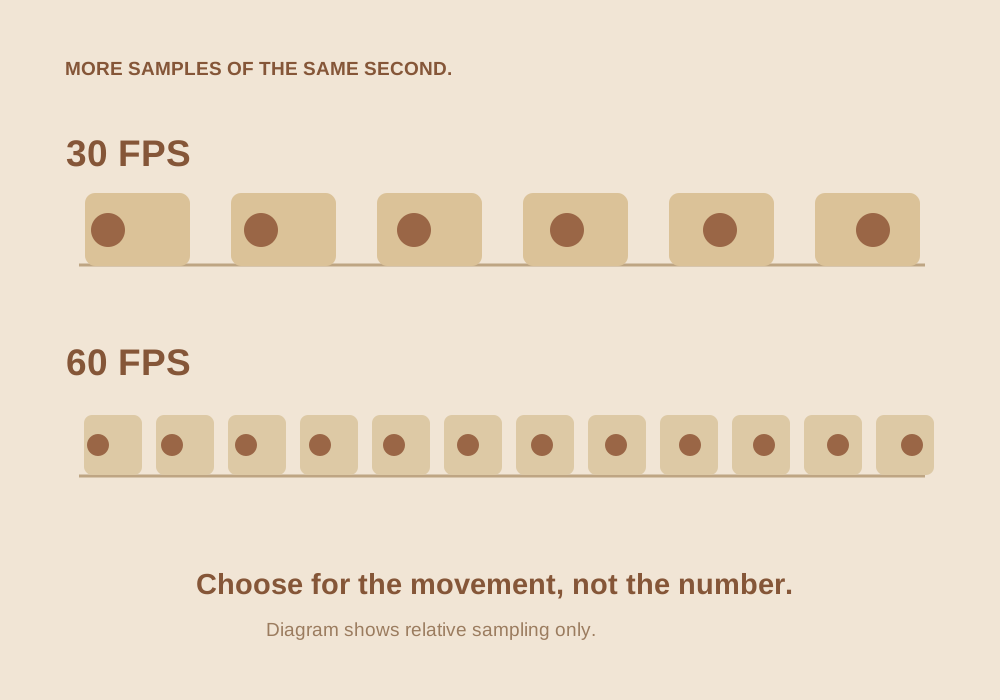
A 30 fps clip contains about 30 pictures for each second of playback. A 60 fps clip samples the motion more often. That can make fast movement look smoother, but it does not automatically add spatial detail. Resolution, focus, exposure, and compression still determine much of the picture quality.
Higher frame rates can also change the look. With comparable motion-blur conventions, each frame may use a shorter exposure, requiring more light. A dim room recorded at 60 fps can become noisy if the camera raises sensitivity to compensate.
Choose based on what moves
- Talking head or mostly static screen tutorial: 30 fps is often a useful starting point.
- Sports, quick camera movement, or fast demonstrations: 60 fps can make motion easier to follow when supported.
- Planned half-speed footage: capturing at 60 fps can supply 30 source frames per playback second when conformed to 30 fps.
- A mixed project: choose a timeline frame rate deliberately before extensive editing.
Reels and other social platforms can process your upload. Check their current recommendations instead of assuming the higher upload frame rate will always survive delivery unchanged.
Understand the slow-motion arithmetic
A one-second 60 fps capture has about 60 frames. If you play those frames at 30 fps, they occupy two seconds. That is 50% speed without needing to invent additional frames. This assumes the editor conforms or retimes the footage appropriately; merely setting an export to 30 fps does not necessarily create slow motion.
If you slow a 30 fps source to 50% in a 30 fps timeline, you need extra displayed frames. The editor may repeat frames, blend frames, or estimate motion with optical flow. Each choice can produce a different artifact, especially around hands, wires, and objects crossing one another.
Keep the project chain predictable
- Decide the delivery frame rate and set the timeline accordingly.
- Inspect the source clips. Phone recordings can use variable frame rates rather than perfectly fixed timing.
- Use deliberate retiming for slow-motion shots.
- Keep export frame rate aligned with the timeline unless you have a specific delivery requirement.
- Watch the exported file for uneven motion and audio sync.
29.97 and 30, or 59.94 and 60, are close but not identical. Long projects and certain broadcast workflows care about that distinction. For a simple web video, consistency is still easier than repeated conversion.
Budget for the whole result
Twice as many source frames do not imply exactly twice the file size. Inter-frame compression, motion, and your chosen bitrate affect the output. Under a fixed total bitrate, more frames share the available information. Smooth motion and per-frame clarity can pull in different directions.
Record a short representative scene at both rates when your device allows it. Compare motion, noise, and readability at the intended viewing size. Pick the version that communicates best rather than the one with the most impressive specification.
Common questions
Will exporting a 30 fps recording at 60 fps make it smoother?
Not by itself. The editor must repeat or generate frames; changing the number does not add real captured motion information.
Is 60 fps always better for low light?
No. Shorter exposure times can make low-light recording harder, depending on shutter and camera settings.
Sources & further reading
Written for ToolWillow with original explanations and examples. Consult current product documentation for controls that vary by version.