Crop to the useful area, avoid needless resizing, and use a quality-based encode. Test the smallest text in a short export before encoding everything.
Text is a demanding compression target
A face can remain recognizable when fine texture softens. A tiny menu label can become useless after only a small loss of edge detail. Screen recordings also contain sharp lines, flat colors, cursor motion, and occasional full-screen changes. The best setting for a cinematic clip is not automatically the best setting for a software demonstration.
Before changing an encoder setting, ask whether viewers can read the source at the intended display size. Recording a whole 4K desktop and shrinking it to a phone screen makes every interface element small. Compression cannot rescue that design choice.
Reduce the amount of screen, not the clarity
- Set a sensible application window size before recording, or crop a finished recording to the useful area.
- Increase the app’s interface or browser zoom when that helps the demonstration.
- Hide unrelated panels and desktop clutter.
- Keep important labels large enough to read in the final composition.
- Avoid a resize down, a resize up, and another resize down across different apps.
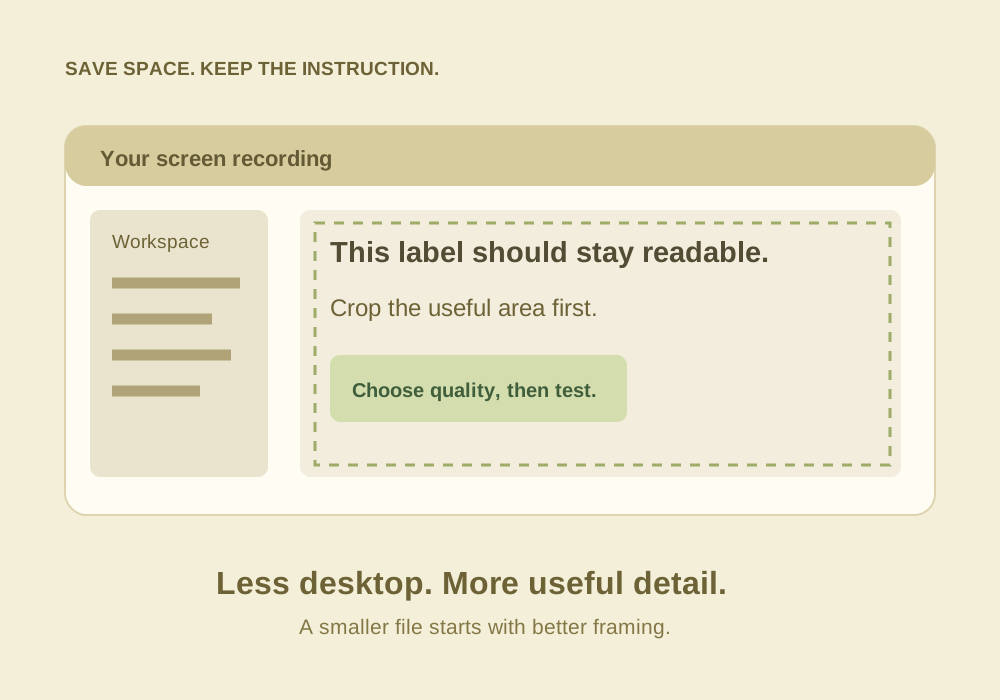
A crop removes unnecessary pixels without shrinking the subject. A resize changes every pixel, including the lettering. Crop first when the layout permits it, then choose the final dimensions.
Use a quality-based starting point
In HandBrake, choose a compatible preset and check the Dimensions tab so you understand any cropping or scaling. For a straightforward delivery copy, H.264 is a practical compatibility starting point. In the Video tab, use a constant-quality control rather than assuming one bitrate works for every screen.
HandBrake’s documentation recommends RF 20–24 as a general 1080p range for its x264/x265 encoders. For small text, start near the higher-quality end and inspect a sample. With those encoders, a lower RF number means higher quality and usually a larger file. Other encoders may use different or reversed scales, so do not transfer numbers blindly.
A slower encoder preset can improve compression efficiency, but it costs encoding time. It does not magically restore unreadable source text. Use short previews to compare one change at a time.
When a hard size limit matters
For an upload limit, estimate the total bitrate budget:
A 120-second video with a 25 MB target has a theoretical total budget of about 1.67 Mbps. Reserve some for audio and container overhead; do not assign the full total to video. This is an arithmetic example, not a claim that the result will be readable.
If a readable version cannot fit, shorten the clip, split it into meaningful chapters, simplify the layout, or provide a downloadable original alongside a preview. For short SDR clips, ToolWillow’s video compressor lets you try quality and resolution settings, then compare the actual exported file size. It does not guarantee a target size.
Inspect the worst frame
Choose a sample containing the smallest menu text, a scrolling panel, a cursor movement, and a window opening. Compare source and export at the same displayed size. Look at letter shapes, not just whether the picture feels sharp overall.
- Letters blur everywhere: investigate scaling and source legibility first.
- Blocks appear during scrolling: the encode may need more information for motion.
- Colored text loses definition: chroma subsampling and resizing can matter; increase the text size and contrast before chasing codec settings.
- The file is larger than expected: quality-based encoding targets quality, not a guaranteed size.
Keep your original recording. Make later delivery copies from that source rather than recompressing the already-compressed export.
A browser export you can inspect yourself
On October 14, 2026, we tested ToolWillow’s live compressor with a synthetic three-second screen recording containing a settings panel and small labels. It was an intentionally static example, not a recording of a particular editing application. The source used H.264 at 1280 × 720, 24 fps and AAC audio. We exported in the browser with Balanced · CRF 28 and Up to 720p · long edge 1280.
| Check | Source | Browser export |
|---|---|---|
| File size | 227,372 bytes | 86,483 bytes |
| Video dimensions | 1280 × 720 | 1280 × 720 |
| Codecs | H.264 / AAC | H.264 / AAC |
| Container duration | 3.000 seconds | 3.008 seconds |
The result was 62% smaller for this sample. We verified the downloaded file’s codecs, dimensions and duration with ffprobe. Small container-duration differences can occur with audio encoding. We did not use a perceptual metric to certify readability or claim that the pictures were identical.
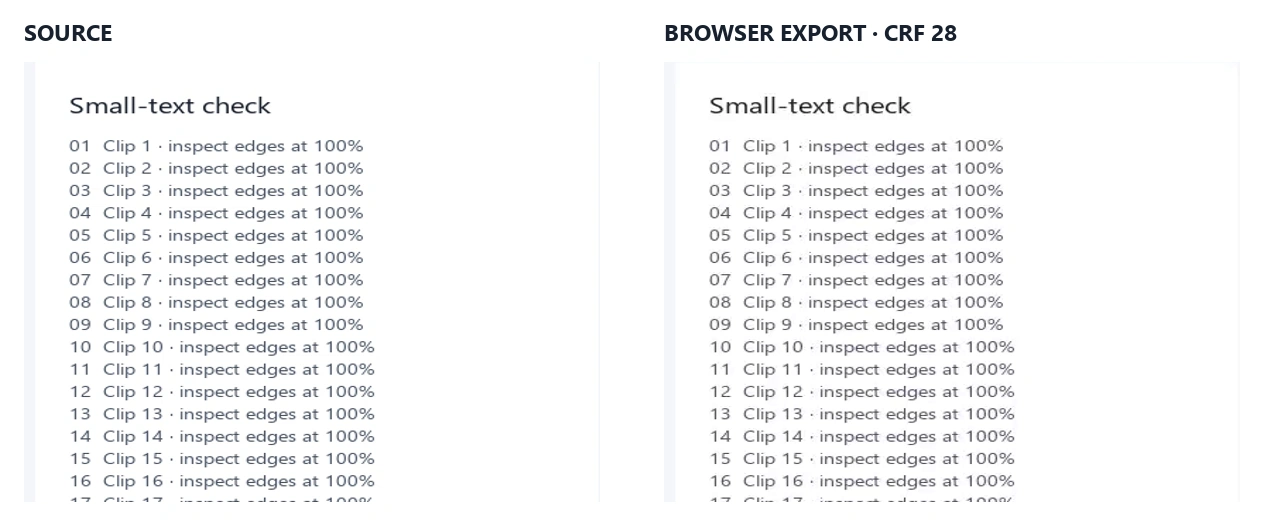
Download the source MP4 and the browser-exported MP4. Compare them at equal display size, then repeat the test on a representative section of your own recording. Static panels compress unusually well; scrolling, webcam footage and moving graphics can give a very different result. This measurement does not establish a universal compression percentage or a recommended setting for all recordings.
Common questions
Should I record at 60 fps?
Only when the demonstration benefits from smoother motion. For many mostly static tutorials, 30 fps is adequate and simpler to deliver.
Can I promise no quality loss with compression?
Lossless compression is possible, but practical small delivery files typically use lossy encoding. The goal here is preserving useful readability, not claiming identical pixels.
Sources & further reading
Written for ToolWillow with original explanations and examples. Consult current product documentation for controls that vary by version.