For a quick preview, use HD when available. For an original file, use the document attachment route or share a link to the original.
The file in your camera roll is only the starting point
You record a clear video, send it to a friend, and the grass suddenly looks like a watercolor painting. This is usually a delivery problem rather than a camera problem. Messaging apps balance upload time, mobile data use, storage, and playback compatibility. A media attachment may be resized and re-encoded before your friend sees it.
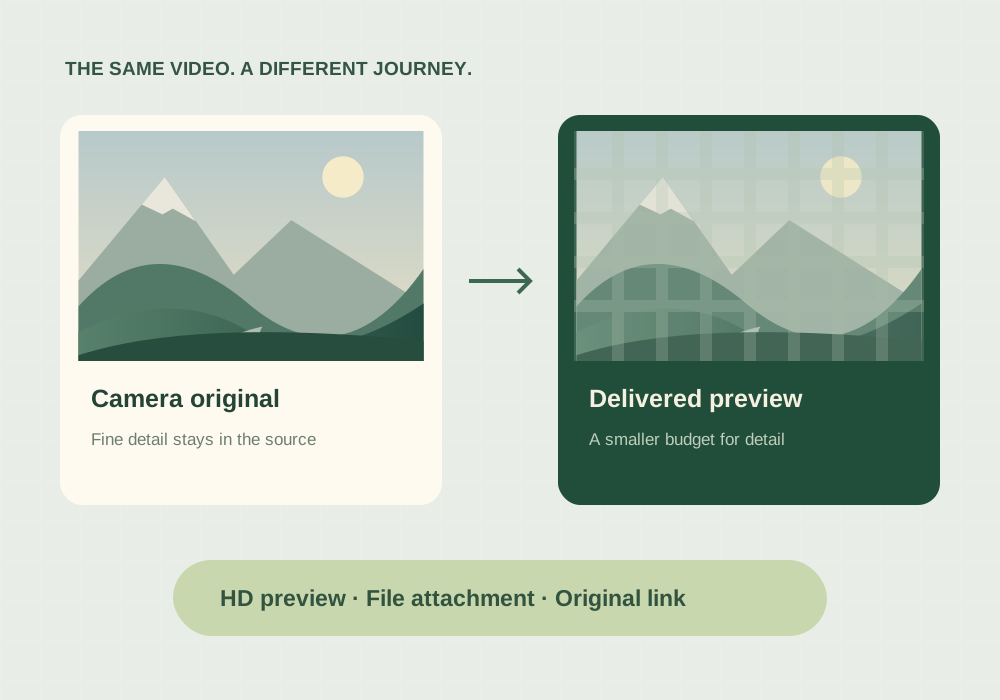
Resolution and compression are different controls. A video can still have plenty of pixels while losing the detail inside those pixels. Moving leaves, hair, glitter, and small lettering are difficult to preserve when an encoder has a tight data budget. A nearly still talking head is easier. That is why two clips sent the same way can look very different.
Choose the route that matches the job
| You need… | Try this | Check afterward |
|---|---|---|
| A convenient chat preview | The HD option, if offered for that video | Detail and text on the recipient’s screen |
| The original editing file | Attach it as a document/file | Filename and file size against the original |
| A large file or several versions | A cloud link to the original | Download permission and link access |
HD means a higher-quality media delivery option; it should not be treated as a promise of an untouched original. Available controls, limits, and defaults depend on your app version, device, and media. Check the current interface rather than assuming a fixed resolution or file-size limit.
Send a better preview in the chat
- Open the conversation and select the video using the photo/video attachment flow.
- Look for the HD control in the preview. If it is available, select the higher-quality option before sending.
- Send a short test to a trusted recipient. Have them open the video itself rather than judging the thumbnail.
- Inspect a difficult frame: a moving face, fine text, or foliage. Decide whether the preview is good enough for the actual use.
If HD is unavailable, do not keep exporting and resending the same compressed file. Each lossy export can remove more detail. Return to the original recording for another delivery attempt.
Send the original as a file
On Android, look in the attachment menu for Document, then browse to the video. On iPhone, you may first need to save the video from Photos to Files, then choose it through the document attachment option. Labels vary, but the important distinction is selecting a file rather than a gallery media attachment.
Ask the recipient to download the file before editing it. Compare its name and byte size with your original. Matching size is a useful quick check, though a matching cryptographic hash is a stronger integrity check when exact preservation matters. A document attachment may be less convenient to preview, but it is the more appropriate workflow for handing off an editing source.
Run a fair comparison instead of guessing
Make one 10-second source clip containing a moving subject, small readable text, and a plain area. Send that same source through standard media, HD media, and file attachment where available. Keep the source identical and avoid downloading and re-uploading a previous attempt.
For each received copy, record the pixel dimensions, duration, file size, and whether the text remains readable at normal viewing size. This is a reproducible experiment you can do on your own devices; the illustration in this guide explains the process and is not a measured WhatsApp comparison.
WhatsApp Status is a separate publishing surface. A delivery method that works for a chat file does not guarantee the same behavior for Status.
Common questions
Does sending in HD preserve the original?
Not necessarily. HD is a higher-quality media option, but the delivered file can still be processed. Use a file attachment or original-file link when preservation matters.
Can sharpening restore a blurry received video?
Sharpening can increase edge contrast, but it cannot reliably recover detail removed by compression. Ask for the original recording.
Sources & further reading
Written for ToolWillow with original explanations and examples. Consult current product documentation for controls that vary by version.