
Use MP4 with H.264 and AAC for a broadly compatible delivery file. Choose an editing format based on its codec and the receiving workflow, not just .mov.
A container is not a quality setting
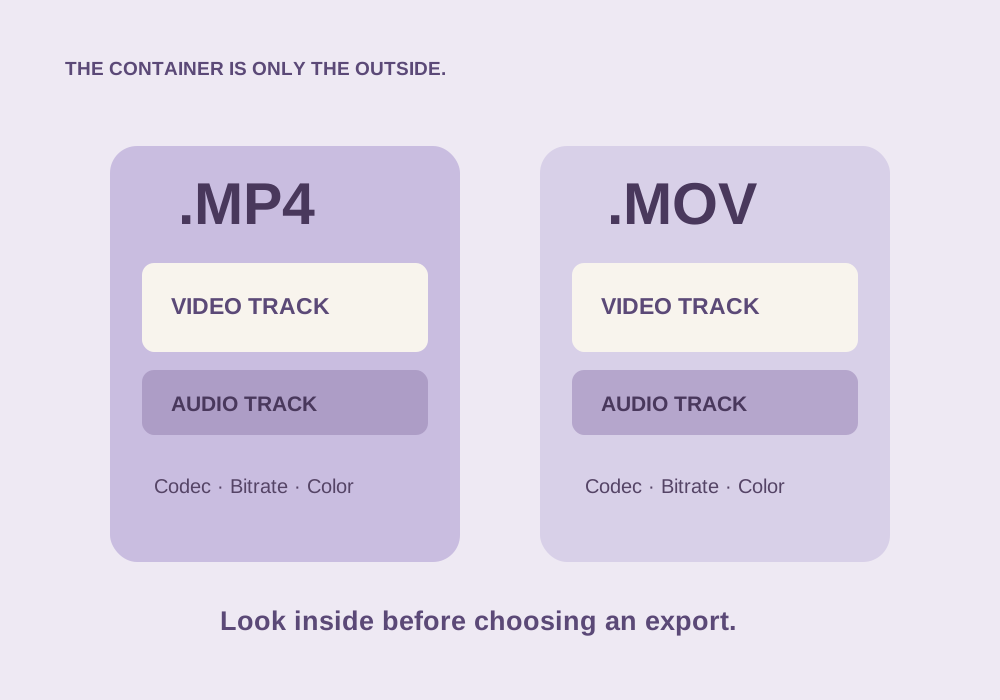
Imagine two labeled boxes. One says MP4 and the other says MOV. The label tells you something about the box’s structure, but it does not tell you how carefully the objects inside were packed. In a video file, the container organizes video tracks, audio tracks, timing, and metadata. The codec describes how the video or audio is encoded.
MP4 and QuickTime MOV are related container formats. An MP4 can carry H.264 video and AAC audio. A MOV can also carry H.264, or an editing-oriented codec such as Apple ProRes. Comparing a camera’s small H.264 MP4 with a huge ProRes MOV compares both the container and the encoding choices. The extension alone did not make one sharper.
The four things worth checking
- Video codec: H.264, HEVC/H.265, ProRes, and others have different compatibility and editing characteristics.
- Dimensions and frame rate: 1920 × 1080 at 30 fps is a different workload from 3840 × 2160 at 60 fps.
- Bitrate or quality setting: this influences the amount of compressed information retained.
- Color and audio: bit depth, color information, HDR metadata, and audio encoding matter to the receiving app.
Open the file in a media-information utility or inspect your editor’s clip properties. The file properties in your editor or a dedicated media-information utility reveal these details; a browser preview does not reliably expose every codec property.
Pick an export for the recipient
| Destination | Practical starting point | Why |
|---|---|---|
| A client preview or ordinary web playback | MP4, H.264 video, AAC audio | Broad playback compatibility |
| Another editor | An agreed intermediate codec, often in MOV | Smoother editing and predictable handoff |
| A long-term project archive | Original sources plus a documented master | A delivery export is not a project backup |
| A transparent graphic | A codec and container that support alpha in the target app | Ordinary H.264 delivery settings will not preserve transparency |
These are starting points, not universal rules. Confirm the other person’s software and required settings before exporting an expensive master.
Remuxing and transcoding solve different problems
Remuxing copies compatible encoded streams into a different container. When the streams are copied unchanged, it does not re-encode the picture. Transcoding decodes and re-encodes a stream, which takes more time and can change quality.
If you already have compatible H.264 video and AAC audio in MOV, you may be able to remux them into MP4. If the receiving device cannot decode the video codec, changing the container will not fix that. You need a compatible transcode. Renaming clip.mov to clip.mp4 performs neither operation.
For a file whose streams are compatible with MP4, ffmpeg -i input.mov -c copy output.mp4 requests stream copying. Check the result; incompatible streams or metadata can require a different approach.
A fair MP4-versus-MOV experiment
Export the same short timeline twice with identical video codec, dimensions, frame rate, bitrate or quality control, and audio settings. Change only the container where the editor allows it. Then compare decoded frames and playback on the destination device. Do not compare different presets and attribute every difference to the file extension.
Keep one master and make delivery copies from it. Repeatedly converting a delivery export to another delivery export adds opportunities for quality loss without improving the original information.
Common questions
Is MOV always better quality?
No. Quality depends on the encoded streams and export settings. MOV is common in professional workflows, but the extension is not a quality guarantee.
Will renaming MOV to MP4 make it compatible?
No. Renaming does not change the container structure or codec. Remux or transcode when needed.
Sources & further reading
Written for ToolWillow with original explanations and examples. Consult current product documentation for controls that vary by version.