
Transparency needs an alpha channel in both the composition and export codec. Test the file in an editor over light and dark backgrounds; a black player background is not proof of a failed alpha export.
A checkerboard is only the beginning of the check
Your logo animation looks transparent in the composition viewer, but the exported file appears on a black rectangle. Sometimes the export lost alpha. Sometimes the player simply draws transparent pixels over black. You need to distinguish these before rebuilding the animation.
Alpha is information describing opacity separately from the image’s color. A transparent logo can include fully opaque strokes, partly transparent antialiasing and motion blur. A black solid sitting behind it makes the final composition opaque, even if the logo itself has alpha. Conversely, a normal H.264 delivery export will not preserve the transparency you saw in the composition. Source, compositing chain, codec and receiving application all matter.
Remove the background from the actual output chain
In Fusion or your graphics editor, inspect the final node or composition output rather than just the logo source. If you need transparency, do not merge the logo over an opaque background. In a node graph, check the alpha of the final image reaching the output. If using a Background node as an empty canvas, set its alpha appropriately instead of making a visible black canvas.
Use a checkerboard or viewer alpha display to inspect the image. Scrub the entire animation, especially motion blur, masks and transitions. A glow may extend outside the opaque logo; that is often intended partial transparency. Trim the composition to the desired duration and leave sufficient frame margins so the animation’s edges are not clipped. Do this before selecting a delivery codec.
Pick a format the recipient can decode with alpha
| Option | Useful for | Check before exporting |
|---|---|---|
| ProRes 4444 in MOV | Motion-graphics handoff between compatible editors | Encoder availability and alpha export enabled |
| PNG image sequence | A portable frame-based handoff | RGBA output, numbering and agreed frame rate |
| Other alpha-capable intermediate | A workflow with a defined receiving application | Specific codec profile and supported alpha mode |
ProRes 422 is not the alpha version of ProRes. Apple identifies ProRes 4444 and 4444 XQ as the family’s alpha-capable formats. Your operating system, application and edition may limit encoding options. If the desired video codec is unavailable, a PNG sequence is a practical alternative, although it produces many files and has no embedded audio.
Export a small proof before the complete animation
- Choose a one-second section containing both a sharp logo edge and a partially transparent effect.
- Select the supported alpha-capable codec or RGBA image format in your export controls.
- Enable Export Alpha or the equivalent setting when the application requires it. Confirm the format has not changed to a non-alpha preset.
- Match dimensions and frame rate to the receiving project. Record those settings in the handoff note.
- Export to a new file or empty sequence folder, then import it into the intended receiving editor.
For an image sequence, keep all numbered frames together. A missing frame can appear as a playback jump. The receiving editor may ask how to interpret the sequence frame rate, so do not rely on a folder of PNGs to communicate timing by itself.
Understand straight and premultiplied edge problems
With straight alpha, color values and opacity are stored independently. With premultiplied alpha, color has already been multiplied by opacity. The receiving software needs the right interpretation. A mismatch can produce dark fringes, pale fringes or unexpectedly bright soft effects.
If you see a halo, check the receiving clip’s alpha interpretation before adding an outline or choking its mask. In Resolve, Clip Attributes exposes relevant alpha interpretation for supported media. Test the appropriate straight or premultiplied setting based on how the source was rendered. Do not guess solely from the file extension. A black or white matte already baked into the color of edge pixels is another problem and may require fixing the source render; changing interpretation cannot reliably recover an opaque background export.
Use four backgrounds for the final acceptance test
Place the imported logo over white, near-black, a saturated color and real footage. Play it at normal speed, then inspect soft edges at full viewing size. White reveals dark fringes, dark backgrounds reveal pale halos, and saturated colors make unintended opacity obvious.
Compare duration and the last frame against the original animation. If audio is part of the handoff, send it separately when the chosen format does not carry it and state the sync point. Supply the final alpha file, a small ordinary preview and a note containing dimensions, frame rate, duration, codec and alpha interpretation. The recipient can then verify the actual asset without treating a standard player’s black background as a diagnostic result.
Common questions
Why is the video black behind my transparent logo in a player?
Many players display transparent areas over black. Import the file into an alpha-aware editor and composite it over another background before deciding whether alpha is missing.
Can I make an ordinary MP4 transparent by changing its extension?
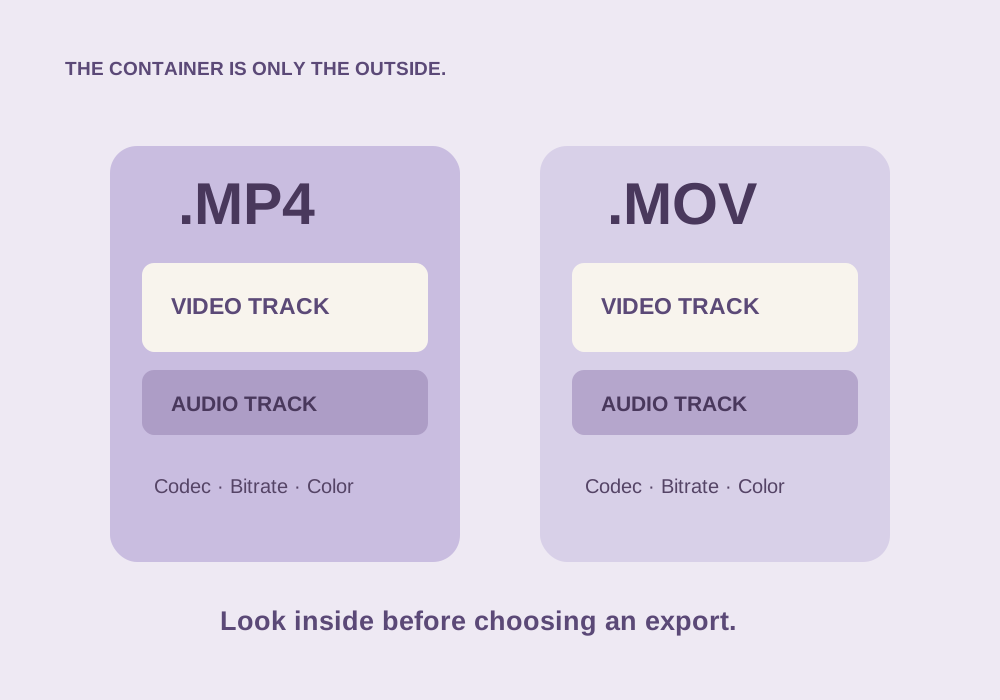
No. Renaming changes neither the codec nor the pixel data. Render from a transparent source into an alpha-capable format.
Sources & further reading
Written for ToolWillow with original explanations and examples. Consult current product documentation for controls that vary by version.