Inspect the codecs and the destination before converting. Repackaging can preserve compatible streams; re-encoding changes them. Verify sound, rotation, color and the last frame in the receiving app.
Start with the reason the MOV failed
A colleague cannot open your MOV, but the file plays on your computer. The extension is only one clue. MOV may contain H.264, HEVC, ProRes, several soundtracks or an alpha-capable graphics export. A receiving app can accept the container while rejecting a codec, profile or feature inside it.
Ask what the recipient actually needs: a playable review copy, an editable master or a transparent graphic. These are different deliverables. A small H.264 MP4 can be useful for review while being the wrong replacement for a ProRes master. Preserve your source and create a separate sharing copy. The MP4 versus MOV guide explains the container distinction; this workflow focuses on making and checking the copy.
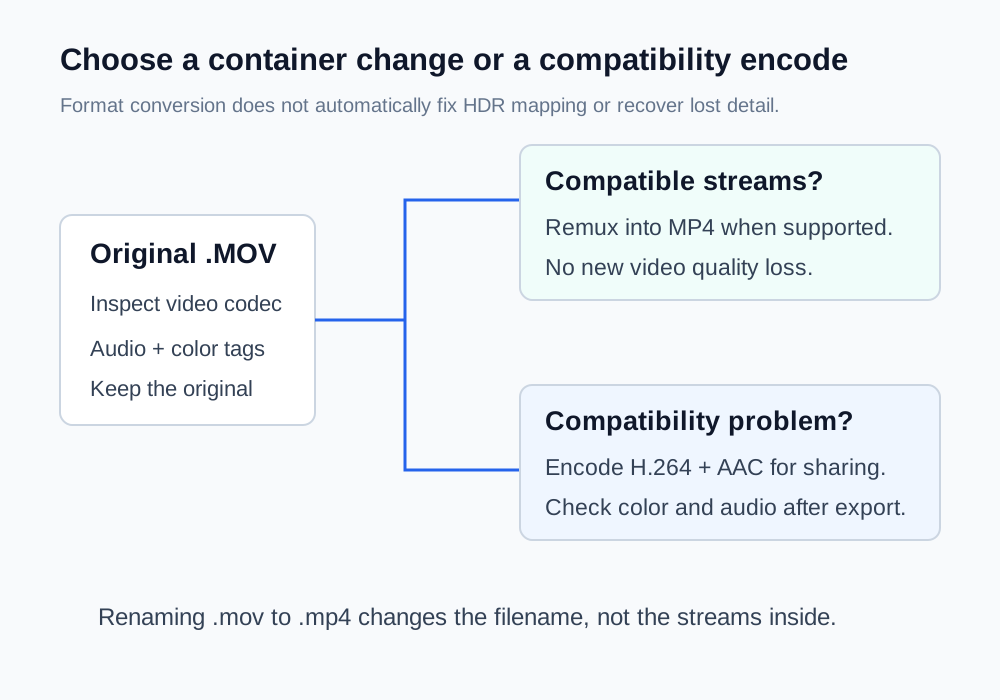
Choose repackaging or re-encoding deliberately
| Source and requirement | Approach to consider | What to verify |
|---|---|---|
| H.264/AAC MOV; destination accepts these streams in MP4 | Repackage into MP4 without re-encoding | Playback, orientation and timing |
| Unsupported video or audio codec | Re-encode a review copy to supported codecs | Picture quality and audio content |
| Phone HDR source for ordinary SDR delivery | Use a color-managed HDR-to-SDR workflow | Highlight detail, skin tone and display behavior |
| Transparent animated graphic | Keep an alpha-capable handoff; make a separate opaque preview if useful | Alpha and edge interpretation in the receiving editor |
Repackaging, often called remuxing, changes the container while copying encoded streams. It can be fast and avoid a new generation of quality loss. It still depends on the target container and application supporting those streams. Re-encoding decodes and compresses them again. A browser converter that re-encodes is not a lossless remux service.
Use the browser converter for a short SDR review copy
- Open ToolWillow’s video converter and select your own MOV under 100 MB.
- Choose MP4. The file stays in the browser; the media engine downloads on the first export.
- Export, then play the result and download it as a new file.
- Keep the MOV and compare the MP4 in a normal player before sharing.
This tool re-encodes to H.264 video and AAC audio and uses the first video stream and first available audio stream. It removes general source metadata. It is intended for short SDR clips, so use an editor for HDR mastering, preserving multiple soundtracks, alpha, captions or production metadata. The local preview may not decode every MOV your engine can read, and successful export alone does not establish that the source was suitable for this workflow.
If small size is also important, compare a compressor export from the original. Avoid converting the converter’s output again just to shrink it. A compatible export may be larger than the source, especially after an efficient source codec changes to H.264.
If you use FFmpeg, make stream selection explicit
For a confirmed compatible H.264/AAC source with one intended picture and soundtrack, this command illustrates repackaging. Replace the filenames with your own paths and write to a new output:
ffmpeg -i source.mov -map 0:v:0 -map 0:a:0? -c copy -movflags +faststart review.mp4The optional audio mapping allows a silent source. It selects only the first audio stream when one exists; inspect the tracks before using it on multilingual or multi-track recordings. Stream copying does not fix unsupported codecs, HDR interpretation or broken source timing. A failure should lead to diagnosis, not changing the extension manually.
The faststart option moves the MP4 index toward the beginning for progressive playback. It does not reduce picture quality loss or guarantee that a platform will stream the file immediately. For more complex sources, select the required streams and output codecs in an editor rather than treating this short command as a universal repair.
Check four moments and four kinds of information
Watch the beginning, a section with movement, a section containing speech and the final seconds. Then compare these properties separately:
- Sound: the intended voice or language is present; channels are not unexpectedly silent or swapped.
- Orientation: portrait footage is upright and proportions are correct. Rotation metadata and physically rotated pixels can behave differently across players.
- Color: highlights, skin tone and contrast remain plausible. If a phone HDR clip looks washed out or harsh, return to a color-managed SDR conversion.
- Timing: duration and the last frame match the intended delivery, and speech stays synchronized through the end.
For transparent logos, do not use a normal H.264 MP4 as the alpha master. See the transparent logo handoff checks. A video that plays over black in a player is not enough to diagnose an alpha failure.
Verify the actual receiving app before delivering everything
Send a short approved sample or use the destination’s draft preview, then check it on the recipient’s type of device. A local player test proves only that local player can decode it. Messaging and video platforms may process the upload, create new resolutions or limit what a preview displays.
Once the test works, deliver the full review copy with a clear filename and keep the original master elsewhere. If the recipient also needs editing latitude, give them the agreed production source separately. Compatibility, file size and editability are related choices; one MP4 does not automatically satisfy all three.
Common questions
Can I rename .mov to .mp4?
Renaming does not change the container or codecs. Repackage compatible streams or make an encoded MP4 copy.
Is ToolWillow’s MOV-to-MP4 conversion lossless?
No. The converter re-encodes video and audio. Keep the original and inspect the new file.
Will all audio tracks and subtitles survive?
The browser converter selects the first video and first audio stream and does not preserve every track. Use an editor or deliberate stream mapping when additional tracks matter.
Sources & further reading
Written for ToolWillow with original explanations and examples. Consult current product documentation for controls that vary by version.