A converter makes a compatible file; it does not promise a smaller one. Compare the original bitrate, encoder settings and audio contribution, then test a short section before exporting the whole clip.
A smaller resolution can still produce a larger file
You export a 720p copy of a 1080p recording and discover that it takes more space. Nothing in the word “compression” guarantees that the new encoder will use fewer bytes than the old one. The source may already use an efficient codec and aggressive settings. Your export may switch to a less efficient codec, a faster preset or a higher quality target.
Keep the original. Check the duration first: comparing a 20-second source with a 30-second export is not a compression comparison. Then inspect the dimensions and codecs in an editor or a media inspector. A small H.265 source and a compatible H.264 export can have different file sizes even at the same resolution. See the playback tradeoffs between H.264 and H.265.
Separate the size budget into picture and sound
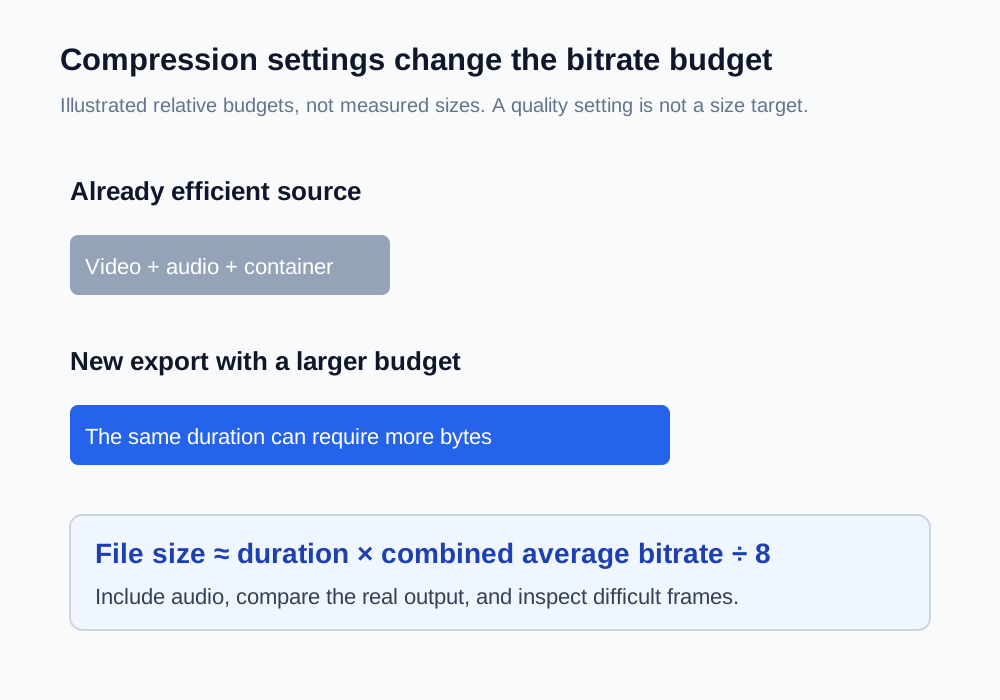
For a rough planning calculation, file size is duration multiplied by the combined video and audio bitrate, divided by eight. Container overhead adds a little more. If bitrates are in megabits per second and duration is in seconds, the result is approximately decimal megabytes.
| Illustrative 60-second export | Video | Audio | Approximate size before overhead |
|---|---|---|---|
| Higher picture bitrate | 4 Mb/s | 0.128 Mb/s | 30.96 MB |
| Lower picture bitrate | 1 Mb/s | 0.128 Mb/s | 8.46 MB |
| Very low picture bitrate | 0.3 Mb/s | 0.128 Mb/s | 3.21 MB |
These are calculations, not measured export results. At the last setting, audio accounts for about 30% of the bitrate budget. A silent screen demonstration with an unnecessary audio track is different from a spoken tutorial: muting the tutorial would remove useful information. Keep required sound and choose an appropriate audio setting in your editor. Remove audio only when it is genuinely unnecessary.
Know which setting is actually controlling quality
A constant-quality setting such as x264 CRF targets a level of compression quality, not an exact file size. Detailed motion, grain and noisy camera footage usually need more data than a static slide at the same setting. Higher x264 CRF values generally use fewer bits with greater loss. The number is not a percentage and cannot be compared directly across unrelated encoders.
An encoder preset changes how much work the encoder spends finding efficient compression. A very fast preset may need more bytes than a slower one for a comparable quality target. ToolWillow’s video converter prioritizes quick, compatible exports using H.264 with an ultrafast preset and CRF 23. The compressor uses a veryfast preset and offers detail, balanced and smaller-file quality choices. Use the compressor when reduction is the objective; use conversion when the receiving app cannot open the source.
Test the difficult part, rather than the quiet opening
- Choose 10–20 seconds containing the smallest text, fastest movement or noisiest dark area in the real clip.
- Start with the original dimensions. Change the compression quality first so you can identify its effect.
- Compare source and output at the same displayed size. Pause on matching frames and also watch at normal speed.
- Check sound, duration and motion. A sharp still frame cannot reveal an audio dropout or timing problem.
- If size remains too large, test a lower resolution separately and recheck text or faces.
The browser compressor is intended for short SDR clips under 100 MB. Keep a local editor available for long projects, strict target sizes or color-managed delivery. ToolWillow’s screen-recording guide contains one measured browser test with downloadable files; that result belongs to its static synthetic source and does not predict savings for your recording.
Choose the next action from the symptom
| What you found | Next useful action |
|---|---|
| Compatible source is already small | Keep it if it meets the destination limit |
| H.265 became larger H.264 | Decide whether wider playback support justifies the increase |
| Text broke up after resizing | Restore resolution and test quality changes separately |
| Only a short section is needed | Trim the unwanted duration before delivery |
| An app requires an exact maximum size | Budget bitrate from duration and use an editor with bitrate controls or two-pass encoding |
For a rough target, multiply the allowed decimal MB by eight, divide by seconds, then subtract the planned audio bitrate. Leave space for overhead and bitrate variation. A constant-quality browser export will not guarantee this target. Always inspect the completed file size before sending it.
Stop repeating lossy exports
Return to the original for every comparison. Compressing the compressed copy can compound damage while hiding which setting caused it. Name your trial files by the changed setting, keep a short note of the winning choice, and export the complete deliverable once from the original.
Ask two separate questions at the end: does the output meet the actual file limit, and does it preserve the information a viewer needs? A smaller file that makes a software menu unreadable is a failed delivery. A slightly larger compatible copy may be the correct result when the original would not play.
Common questions
Does changing MP4 to MOV reduce size?
Changing the container alone rarely produces substantial savings. Video and audio encoding dominate most files. Renaming the extension does not convert the contents.
Why did the same settings produce different savings on two clips?
Constant-quality encoding responds to scene complexity. Noise, motion, texture and the source’s previous compression affect the bytes needed.
Can I force a particular size with the browser compressor?
No. Its quality settings do not promise a target bitrate or size. For a strict limit, use bitrate budgeting and an editor with suitable rate controls.
Sources & further reading
Written for ToolWillow with original explanations and examples. Consult current product documentation for controls that vary by version.